Day 4 Task: Basic Linux Shell Scripting for DevOps Engineers.
Introduction:
Welcome to all day 4 of #90daysofDevOps. Today we will learn basic linux shell scripting. let's dive a bit deeper into some essential concepts and practical examples of basic Linux shell scripting for DevOps engineers:
1Variables:allow you to store data, and you can use them for various purposes in your scripts.
2.Conditional Statements:
Sure, let's dive a bit deeper into some essential concepts and practical examples of basic Linux shell scripting for DevOps engineers:
1. Variables and User Input:
Variables allow you to store data, and you can use them for various purposes in your scripts:
2. Conditional Statements:
Conditional statements help you make decisions based on certain conditions.
3. Loops:
Loops help you repeat tasks until certain conditions are met.
4.Function:
Functions enable you to organize code for reuse.
5.Command Line Argument:
You can pass arguments to your script when executing it from the command line.
6.File operation:
You can perform various file operations using shell scripting.
7.Permission & Execution:
Before executing a script, ensure it has execution permissions.
8.Managing services:
As a DevOps engineer, you may need to manage services on your system.
#What is #!/bin/bash? can we write #!/bin/sh as well?
#!/bin/bashis called the "shebang" or "hashbang." It is a special line at the beginning of a script that tells the system which interpreter should be used to execute the script. In this case,#!/bin/bashspecifies that the script should be interpreted and executed using the Bash shell.Similarly, you can use
#!/bin/shto specify that the script should be executed using the system's default POSIX-compliant shell, which is often a symbolic link to the preferred shell on the system. It may be Bash, Dash, or another compatible shell depending on the Linux distribution.#!/bin/bashis called the "shebang" or "hashbang." It is a special line at the beginning of a script that tells the system which interpreter should be used to execute the script. In this case,#!/bin/bashspecifies that the script should be interpreted and executed using the Bash shell.Similarly, you can use
#!/bin/shto specify that the script should be executed using the system's default POSIX-compliant shell, which is often a symbolic link to the preferred shell on the system. It may be Bash, Dash, or another compatible shell depending on the Linux distribution.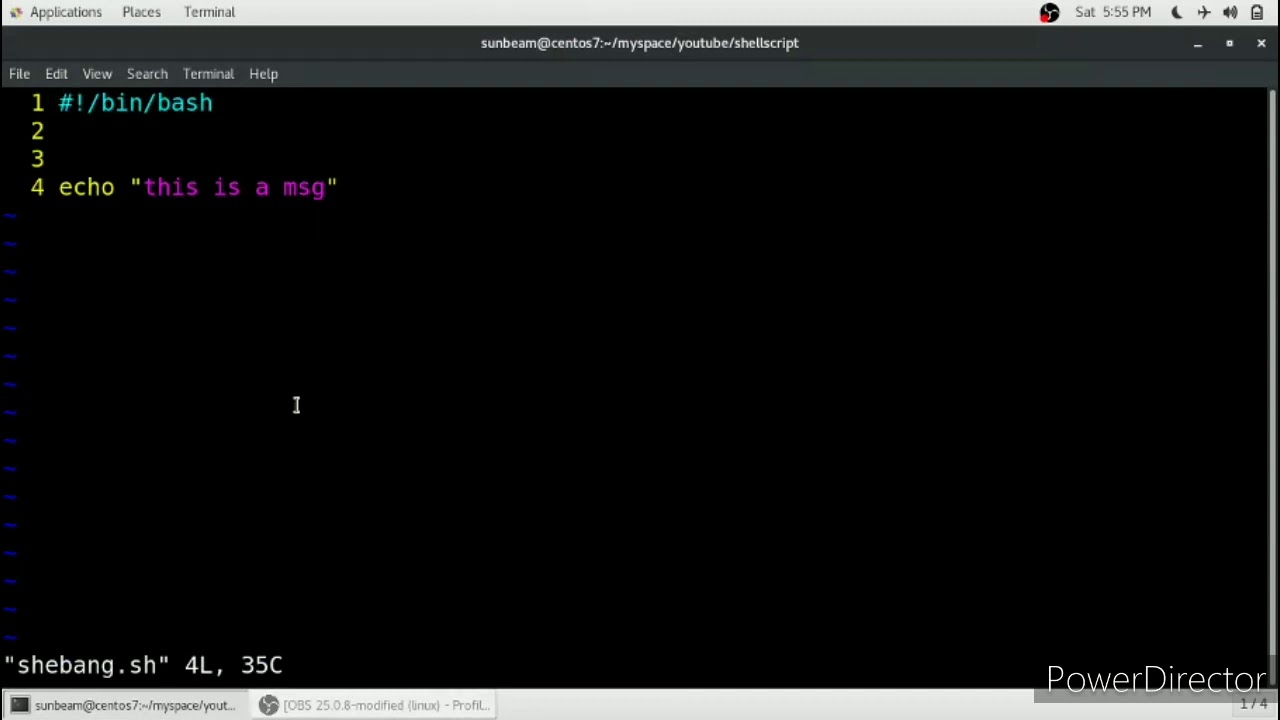
#Write a Shell Script which prints
I will complete #90DaysOofDevOps challenge:Let's try basic example of shell scripting.we will write a shell script which print "I will complete #90DaysofDevOps chllange"
Below is a simple shell script that prints the statement "I will complete #90DaysOfDevOps challenge" to the terminal.
   code#!/bin/bash

  echo "I will complete #90DaysOfDevOps challenge"
Save the above script in a file, let's say devops_challenge.sh. Make sure to give execution permissions to the script using chmod +x devops_challenge.sh.
Write a Shell Script to take user input, input from arguments and print the variables.
Certainly! Below is a shell script that demonstrates how to take user input and command-line arguments and then print the variables:
  bashCopy code#!/bin/bash

  # Take user input
  read -p "Enter your name: " user_name
  read -p "Enter your age: " user_age

  # Accessing user input variables
  echo "User input variables:"
  echo "Name: $user_name"
  echo "Age: $user_age"

  # Accessing command-line arguments
  echo "Command-line arguments:"
  echo "Argument 1: $1"
  echo "Argument 2: $2"
Save the above script in a file, let's say
user_input_arguments.sh. Make sure to give execution permissions to the script usingchmod +x user_input_arguments.sh.Then, you can run the script in the terminal, and it will prompt you to enter your name and age:
  bashCopy code$ ./user_input_arguments.sh
  Enter your name: John
  Enter your age: 30
After you enter your name and age, the script will display the variables based on both user input and command-line arguments (if provided):
  bashCopy codeUser input variables:
  Name: John
  Age: 30
  Command-line arguments:
  Argument 1: value1
  Argument 2: value2
Please note that the values for
Argument 1andArgument 2in the output will be determined by the arguments you provide when running the script. For example:bashCopy code$ ./user_input_arguments.sh value1 value2I hope this helps! Feel free to modify the script to suit your specific use case.
Write an Example of If else in Shell Scripting by comparing 2 numbers:
Using "if else" in shell scripting lest's compare two numbers and execute different codes.
Certainly! Below is an example of an if-else statement in a shell script that compares two numbers:
  bashCopy code#!/bin/bash

  # Assign values to the variables
  num1=10
  num2=20

  # Compare the two numbers
  if [ $num1 -eq $num2 ]; then
    echo "$num1 is equal to $num2."
  elif [ $num1 -lt $num2 ]; then
    echo "$num1 is less than $num2."
  else
    echo "$num1 is greater than $num2."
  fi
In this example, we compare
num1andnum2. The script uses the following comparison operators:-eq: Checks if two numbers are equal-lt: Checks if the first number is less than the second number-gt: Checks if the first number is greater than the second number
The script will output:
Feel free to modify the values of num1 and num2 to see different outcomes based on the comparison.
Conclusion:
In simple words, the conclusion of shell scripting is that it provides a powerful and efficient way to automate tasks, perform system operations, and manage various processes in a Unix-like environment. By writing scripts in the shell language, you can save time, increase productivity, and streamline repetitive tasks. Shell scripting is an essential skill for developers, system administrators, and DevOps engineers, enabling them to interact with the operating system, execute commands, and process data easily. Whether it's simple one-liners or complex scripts, mastering shell scripting can significantly enhance your effectiveness in managing and automating tasks in the command-line interface.
Thankyou for reading.